How to Customize Your Portable PIM for Maximum Productivity
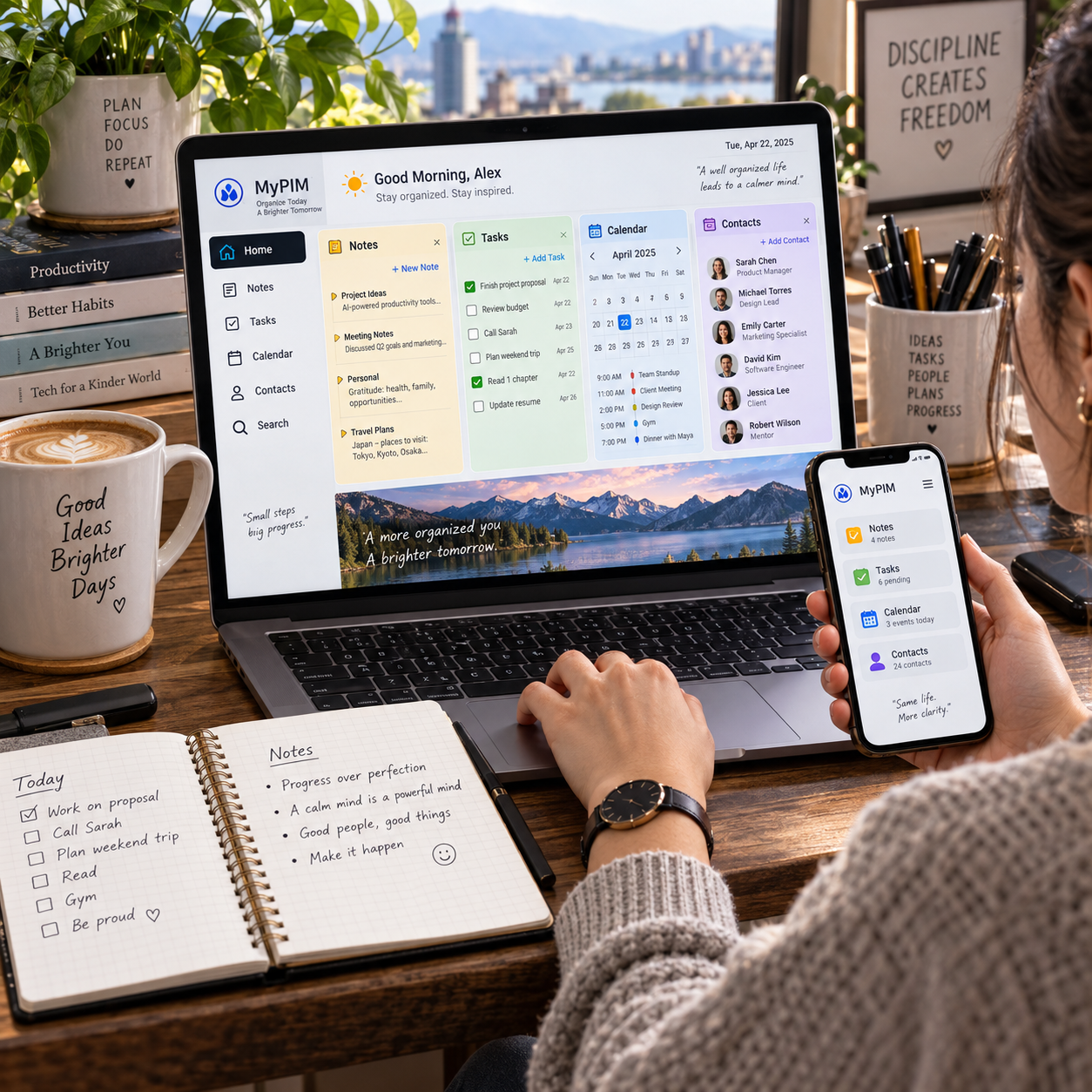
A portable personal information manager (PIM) is most useful when it fits the way you handle information every day. A few deliberate settings can make it easier to capture a note, track a task, find a contact, or check your schedule, whether you are at your desk or using another device.
Start small. Customize the parts of your PIM you rely on most, then adjust as your needs change. A simple, dependable setup usually serves better than a complex system that takes longer to maintain than to use.
Start with the Information You Need to Manage
Choose PIM features based on the information you regularly need to capture and retrieve. Prioritize your most common tasks first, such as recording notes, managing reminders, or checking contact details.
For one week, notice what you reach for during a typical day. Do you jot down meeting notes, save reference material, track follow-ups, or look up phone numbers? This quick audit helps distinguish essential features from options that may add clutter.
A practical starting list might include:
- Notes and notebooks for meeting records, ideas, and reference information.
- Tasks and reminders for actions that need a clear next step or deadline.
- Contacts for names, communication details, and useful context.
- Calendar and scheduling for appointments and time-specific commitments.
Set up only the modules you expect to use. If your existing calendar already handles appointments well, your PIM may only need links to relevant notes and tasks. Choosing a single place for each kind of information reduces duplication, though it can mean opening another app for less-used features.
Set Up a Clear Organizational Structure
A clear organizational structure makes PIM information easier to file and find. Use a small set of notebooks, categories, or tags that reflect how you naturally look for information.
Start with a few broad notebooks, such as Work, Personal, and Reference, if your PIM supports them. Use categories or tags for cross-cutting details: a project note might belong in Work and carry tags for a client and a meeting. This keeps you from creating a separate notebook for every small subject.
For tags, begin with labels that answer practical questions: What project is this for? Who does it involve? What status does it have? Useful examples include “Project North,” “follow-up,” and “waiting.” Avoid creating near-duplicates such as “urgent,” “high priority,” and “ASAP” unless they have clearly different meanings.
There is no ideal number of categories for every PIM. A manageable system is one where you can choose a label quickly and remember what it means. If filing a new note requires several decisions, simplify the structure before adding more labels.
Personalize Capture, Tasks, and Reminders
Configure information capture, tasks, and reminders so recording something takes less effort than relying on memory. Put quick-entry tools where you can reach them and use a short, consistent format for new items.
If your portable PIM offers a shortcut, widget, or inbox, make it the default destination for uncategorized information. Capture first; sort later. For example, enter a task as “Send revised estimate to Maya” rather than “estimate.” The action and recipient make it easier to understand when the reminder appears.
Keep tasks distinct from calendar events. A task is an action to complete; an event occupies a particular time. Give deadlines only when they are real, and set reminders early enough to act on them. Too many alerts can lead you to dismiss notifications without reading them, so reserve them for commitments where a prompt matters.
For notes, create a reusable template for recurring situations, such as a meeting with headings for decisions, action items, and follow-up date. Templates speed up capture, but keep them short. If a form has too many fields, you may stop using it when you are in a hurry.
Make Search and Navigation Work for You
Consistent titles and a few useful filters make PIM search faster and more dependable. Name items so the words you are likely to search for appear in the title or first lines.
A practical note title might be “North project – design review – 14 May.” The project and meeting type are easy to scan, and the date helps distinguish it from later reviews. Use a date format consistently, particularly if your PIM sorts titles alphabetically rather than chronologically.
Filters can surface information by status, category, or time. For example, a saved view for tasks tagged “follow-up” can collect actions from different projects without moving them into a separate list. Start with filters you will use regularly, then remove any that duplicate your notebook structure.
Test retrieval with realistic searches: find last week’s meeting notes, an upcoming task, or a contact’s details. If you cannot locate an item within a few moments, adjust the naming convention, tags, or filter. Search depends on what you entered, so no filter can compensate for inconsistent titles or missing details.
Configure Portability, Sync, and Backups
Configure synchronization and backups so essential PIM information stays available across devices and can be restored after a problem. First check how your software stores data, then choose settings that match your access needs and privacy expectations.
Confirm which notebooks, contacts, calendars, and attachments sync to each device. If you work without a reliable connection, make important material available offline and check that edits sync after you reconnect. Sync can keep devices aligned, but it may also spread accidental changes or deletions, so test the behavior before relying on it.
Backups provide a separate safeguard. Use the PIM’s export or backup feature on a regular schedule, and store a copy somewhere other than your primary device. Occasionally test that you can open or restore the backup; a file that has never been checked is only an assumption of protection.
Review account security and sharing settings, especially if your PIM contains personal contacts, work notes, or private schedules. Use a strong account password and device lock, and avoid syncing sensitive information to a device or account you do not control. Convenience and privacy can pull in different directions; keep confidential data off devices where you cannot manage access.
Review and Refine Your Setup
Review your portable PIM every month or two, or sooner if your routine changes. Remove labels and views you no longer use, check that sync and backups still work, and simplify any step that makes capture or retrieval harder.
A short review can follow four questions:
- Can I capture a note or task quickly on each device I use?
- Can I find recent information by title, tag, or filter?
- Are reminders useful, or have notifications become background noise?
- Are my data synced as intended and backed up separately?
Change one part at a time, then use the new setup for a week before making another adjustment. That gives you a clearer sense of whether the change helped. Resist rebuilding the whole system whenever you discover a small inconvenience; often, a better title or one removed tag is enough.
Frequently Asked Questions
Which features should I customize first in a portable PIM? Start with quick capture, your main notes or tasks view, and reminders. These settings affect everyday use and are easy to evaluate before you adjust less-used features.
How many categories or tags should I use? Use as few as you can while still making information easy to group and retrieve. Add a tag when it solves a real search or workflow problem, not simply because a topic exists.
How can I keep my PIM consistent across devices? Use the same naming and tagging conventions everywhere, confirm which data syncs, and check that offline edits upload after reconnecting. Keep a separate backup as well.
How often should I review my PIM setup? A monthly or bimonthly check works for many people. Review sooner after changing devices, taking on a new project, or noticing that capture, search, or reminders have become unreliable.