How to Sync Your Portable PIM Across Multiple Devices
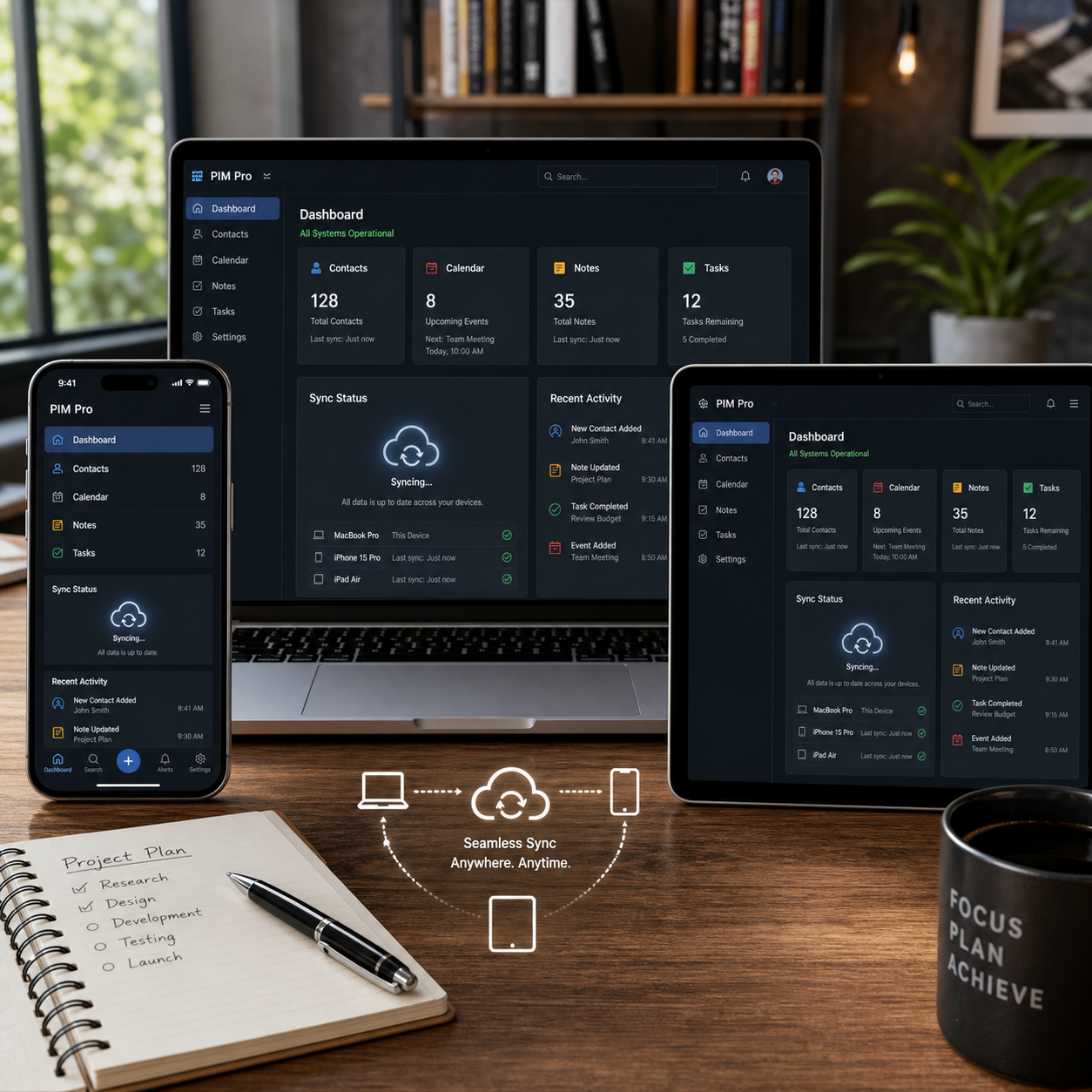
A portable personal information manager (PIM) can keep contacts, calendars, notes, tasks, and other records available wherever you work. Multi-device synchronization makes that information consistent across a desktop or laptop, smartphone, and tablet, but the exact process depends on the PIM application, supported operating systems, and available connection methods.
The safest approach is to identify the synchronization model first, create a recoverable backup, test a small data set, and verify the results on every device. That sequence prevents a rushed first sync from overwriting useful records or spreading duplicates.
What Multi-Device PIM Syncing Does
Multi-device PIM syncing keeps selected personal records aligned across approved devices. When configured correctly, an edit to a contact, calendar event, note, or task can be transferred to another device through a supported synchronization service or connection.
Synchronization usually compares records using identifiers, timestamps, field values, or application-specific rules. It may transfer newly created items, update existing records, and sometimes delete items that were removed elsewhere. These behaviors vary, so check the PIM's documentation before enabling automatic changes.
Syncing is different from a one-time export or device migration:
- One-way transfer: Data moves from a source device to a destination, while later edits may not return.
- Two-way sync: Changes from both devices are exchanged, which is convenient but can create data conflicts.
- Backup: A separate recovery copy preserves an earlier state. Synchronization does not replace backup because deletions or corruption can also synchronize.
Think of synchronization as an agreement about which records should match, which device edits are trusted, and how disagreements are handled. A portable PIM may sync all categories or only selected collections, such as work contacts and personal calendars.
Choose the Right Sync Method for Your Portable PIM
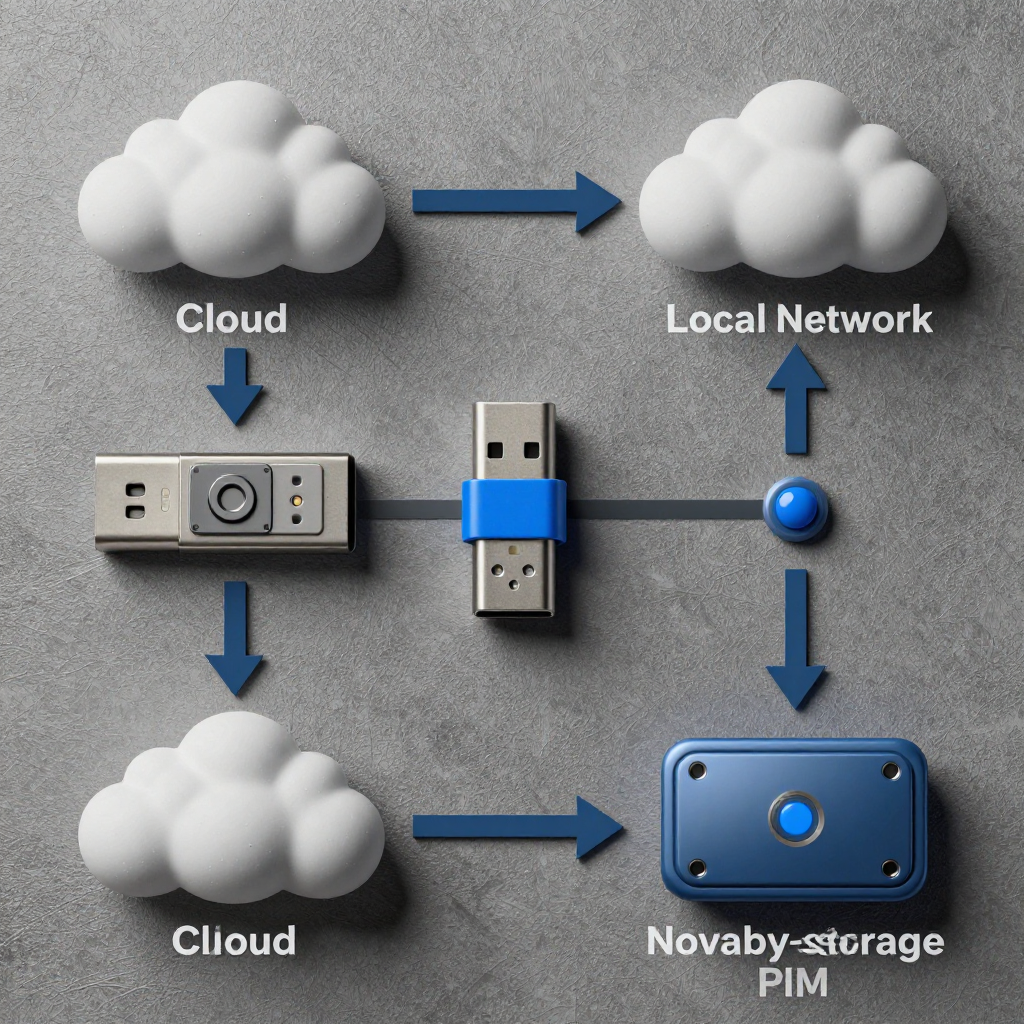
The right PIM sync method depends on supported devices, privacy requirements, connectivity, and whether you need two-way access. Cloud synchronization is convenient, while local or direct methods can reduce online exposure, but no single option fits every portable PIM.
Cloud synchronization
Cloud sync stores an encrypted or otherwise protected copy with an online service and distributes changes to authorized devices. It is practical when a desktop, laptop, smartphone, and tablet are often in different locations. Offline edits may be queued until a connection returns.
Choose cloud synchronization for convenience and broad device access, but review the provider's encryption, authentication, retention, export, and account-recovery controls. Personal information stored online creates an additional privacy and account-security responsibility.
Local network synchronization
A local network sync transfers data between devices connected to the same trusted Wi-Fi or wired network. It can suit users who want to avoid a third-party cloud service, although devices normally need to be online at the same time.
Direct connections and removable storage
Some PIMs support a direct USB connection, a desktop companion, or an encrypted file exchange. Removable storage can carry a portable database or export file, but it may provide only a one-way transfer and can be lost or damaged.
Before choosing, confirm whether your PIM supports the exact combination you need: for example, a Windows laptop with an Android phone, a Mac desktop with an iPad, or multiple computers using the same data file. Do not assume that a PIM supporting portable storage also supports live two-way mobile synchronization.
Prepare Your Devices and PIM Data
Preparation reduces sync errors and protects your original records. Install compatible PIM software, update each device, confirm storage, sign in where required, and make a backup before the first synchronization.
- Check compatibility. Confirm the PIM version, operating system, mobile app, plug-ins, and supported data types. Contacts, calendars, notes, and tasks may not all use the same sync mechanism.
- Update carefully. Install stable, compatible versions on the desktop or laptop and mobile devices. If a major upgrade changes the database format, read the migration instructions first.
- Use the correct account. Cloud-based PIMs usually require the same account, while local network tools may use device pairing or authorization codes.
- Check storage and power. Free space on both source and destination devices. Keep mobile devices charged during an initial transfer.
- Create a backup. Export contacts, calendars, notes, and tasks when possible, and copy the portable PIM database to secure storage. Record the backup date and test that the file can be opened or restored.
- Clean obvious errors. Remove test entries, correct malformed email addresses, and identify existing duplicates before synchronization. Cleaning a small data set is easier than repairing a multiplied one.
Start with a limited collection rather than your entire archive. A small test reveals whether field mapping, time zones, recurring events, attachments, and formatting behave as expected.
How to Set Up Two-Way Synchronization
To set up two-way synchronization, authorize both devices, select matching data sources, define the sync direction, test a small set, and verify every result. The labels differ between PIM products, but the workflow is broadly similar.
- Select the source data. Choose the contacts, calendars, notes, and task lists that should participate. Avoid syncing unrelated archives until the basic connection works.
- Pair or authorize devices. Sign in to the same account, scan a pairing code, approve the desktop companion, or connect through the local network. Only authorize devices you recognize.
- Choose two-way sync deliberately. Confirm that changes can travel in both directions. If one device should remain authoritative, use one-way synchronization instead.
- Map fields and collections. Match contact names, phone numbers, email addresses, event times, tags, note folders, and task statuses. Check how the PIM handles unsupported fields and attachments.
- Run a small initial sync. Synchronize a handful of contacts, one calendar, several notes, and a few tasks. Do not begin with a full archive if the software offers a test or selected-items mode.
- Verify on both sides. Open the records on the desktop or laptop and on the smartphone or tablet. Check names, dates, time zones, reminders, tags, attachments, and formatting.
- Expand gradually. If the test succeeds, add remaining collections and schedule synchronization according to how frequently your information changes.
Two-way sync is useful when you edit a task on your phone and a calendar event on your laptop. The trade-off is that simultaneous offline edits can produce conflicts. A clear preferred-source policy matters more than simply turning on automation.
Resolve Conflicts, Duplicates, and Missing Updates
Resolve PIM sync conflicts by preserving both versions, identifying the intended edit, and removing duplicates only after verification. Never delete a conflicting record immediately when the original data is not backed up.
A conflict can occur when the same note, contact, or calendar event changes independently on two offline devices. Some PIMs ask which version to keep; others create a conflict copy or choose the newest timestamp. Review the actual content because the newest timestamp is not always the most accurate version.
A repeatable conflict process
- Pause automatic synchronization if repeated changes are multiplying records.
- Export or back up the affected collections.
- Compare both versions, including hidden fields, reminders, recurrence rules, and attachments.
- Choose a preferred version or merge the fields manually.
- Remove confirmed duplicates using unique details such as email address, phone number, event time, or note title.
- Run a controlled sync and verify that the corrected record remains stable on every device.
To prevent future duplicates, avoid importing the same address book repeatedly, keep device clocks accurate, and use one canonical collection for each category. If updates appear missing, check filters, archived folders, account selection, and whether the device has completed its outgoing queue.
Keep Synchronized PIM Data Secure
Secure PIM synchronization requires encryption, strong authentication, trusted devices, restricted access, and independent backups. Contacts, schedules, notes, and tasks can reveal personal relationships, locations, health details, or work plans.
- Use a long, unique account password and multi-factor authentication when available.
- Prefer synchronization methods that encrypt data in transit and protect stored data. Understand whether the provider can access decrypted content.
- Authorize only personal, updated devices and revoke access for lost phones, retired laptops, and former accounts.
- Use a trusted local network. Avoid syncing sensitive records over unknown public Wi-Fi unless the connection is properly protected.
- Apply screen locks, device encryption, operating-system updates, and app updates.
- Keep at least one backup outside the active sync system. Store it securely and test recovery periodically.
The most secure setup may be less convenient. A local network workflow can limit cloud exposure but requires devices to meet and may complicate remote access. A cloud workflow simplifies availability but makes account recovery and provider trust central to your security plan.
Troubleshoot Ongoing Sync Problems
Most ongoing PIM sync problems come from offline devices, incompatible software, insufficient storage, expired permissions, or a stale synchronization queue. Check the simplest cause first, then inspect logs or status details before resetting the database.
- Device is offline: Confirm internet or local network access, then reopen the PIM and allow the outgoing queue to finish.
- Versions are incompatible: Update the PIM and companion apps, but create a backup before changing database formats.
- Storage is full: Free space on the device and in the cloud account. Large attachments can block an otherwise small record update.
- Permissions were revoked: Reauthorize the account or device. Check calendar, contacts, file, and notification permissions separately.
- Connection fails: Confirm pairing, firewall rules, local network discovery, VPN behavior, and the correct account.
- Status is stale: Compare the last successful sync time, not merely an app icon. Look for queued, skipped, or conflicted items.
If a reset is necessary, export current data first and record which device holds the cleanest copy. Reinstalling an app without that plan can turn a temporary connection problem into permanent data loss.
Portable PIM Sync FAQ
Can a portable PIM sync between a computer and a phone?
Yes, if the PIM supports that operating-system combination and provides a compatible mobile app, cloud account, local network feature, or direct transfer method. Confirm whether the connection supports two-way sync or only export and import.
Is cloud synchronization required for multi-device access?
No. A PIM may use local network synchronization, a direct device connection, or removable storage. Cloud synchronization is often easier for devices in different locations, but it introduces online privacy and account-recovery considerations.
How should PIM sync conflicts be handled?
Back up the affected data, compare both edits, merge or select the correct version, remove confirmed duplicates, and perform a controlled verification sync. Avoid relying on automatic newest-edit rules for important records.
How often should a portable PIM be synchronized?
Sync after meaningful edits and before switching devices. Automatic intervals can work for frequently changing calendars and tasks, while manual sync may be preferable for sensitive archives or unreliable connections.
What should be backed up before enabling sync?
Back up the portable PIM database and export contacts, calendars, notes, and tasks when supported. Include attachments, configuration details, encryption keys, and recovery codes if the software uses them.
A dependable setup follows a simple rhythm: back up first, test narrowly, synchronize deliberately, verify the records, and review security whenever a new device joins your PIM system.